WhereScape Enablement Pack for Hive - RED 10
This is a guide to installing the WhereScape Enablement Pack for HIve for WhereScape RED10
Prerequisites For PostgreSQL Metadata
Before you begin the following prerequisites must be met:
- Create Database and ODBC DSN:
- Supported* version of PostgreSQL (PostgreSQL 12 or higher)
- A database to house the RED Metadata Repository.
- A database for the Range Table DB (Optional)
- A database to house scheduler (Optional)
- Supported* version of PostgreSQL (PostgreSQL 12 or higher)
- Software Installations
- WhereScape RED10 with valid license key entered and EULA accepted
- WhereScape Enablement Pack for target database version RED10
- Windows Powershell (64-bit) version 4 or higher
- To check the Windows Powershell Version:
- Run the below command in Windows Powershell
Get-Host|Select-Object Version
- Run the below command in Windows Powershell
- To check the Windows Powershell Version:
- Run the below command in the Command Prompt
powershell $psversiontable
- Run the below command in the Command Prompt
- Run the following command using PowerShell
- The security protocol TLS 1.0 and 1.1 used by PowerShell to communicate with the PowerShell gallery has been deprecated and TLS 1.2 has been made mandatory
[Net.ServicePointManager]::SecurityProtocol = [Net.ServicePointManager]::SecurityProtocol -bor [Net.SecurityProtocolType]::Tls12
Register-PSRepository -Default -Verbose
Set-PSRepository -Name "PSGallery" -InstallationPolicy Trusted
- The security protocol TLS 1.0 and 1.1 used by PowerShell to communicate with the PowerShell gallery has been deprecated and TLS 1.2 has been made mandatory
- Progress bar placeholder info line
Install-Module -Name PoshProgressBar -SkipPublisherCheck -Force
- Progress bar placeholder info line
* RED supports the following versions for the metadata repository: PostgreSQL 12 or higher
Prerequisites for Target Database
Before you begin the following prerequisites must be met:
- Access to a Hive (Target Environment) with the following connectivity information:
- Server Name
- Database Name
- User Name
- Password
- Hive software installed
- Hive ODBC driver (64-bit)
- Add ODBC DSN for Hive Database
- Hive ODBC driver (64-bit)
- Python 3.11 or higher
- Select "Add Python 3.11 to PATH" from installation Window
- Pip Manager Install with command :
python -m pip install --upgrade pip
Installation Through Setup Wizard
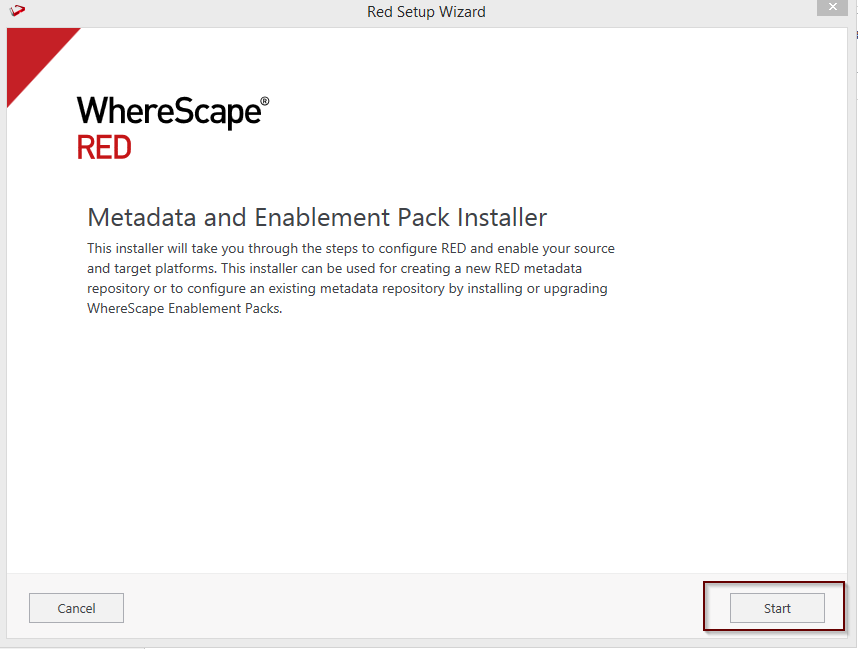
Run Setup as administrator
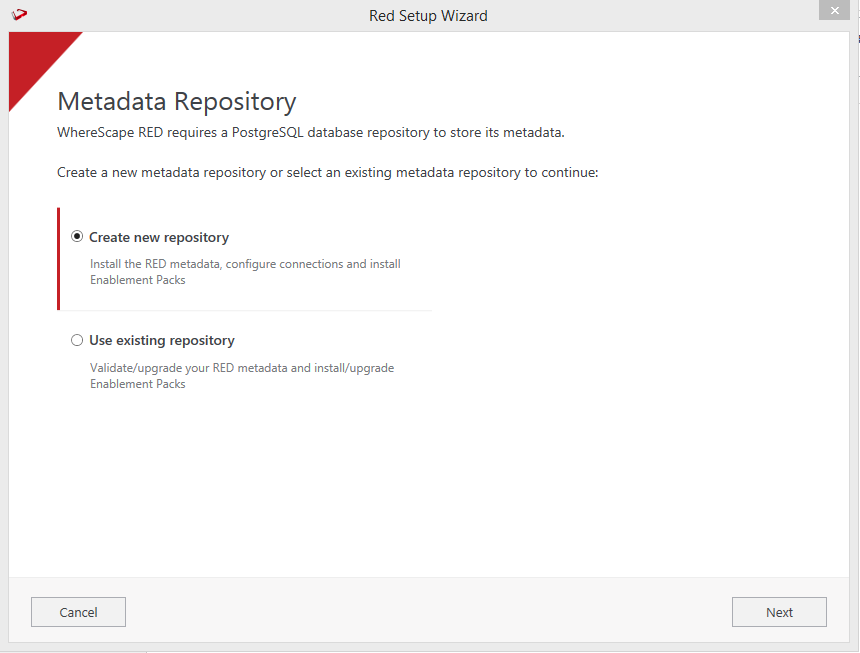
Create a new repository or upgrade an already existing repository.
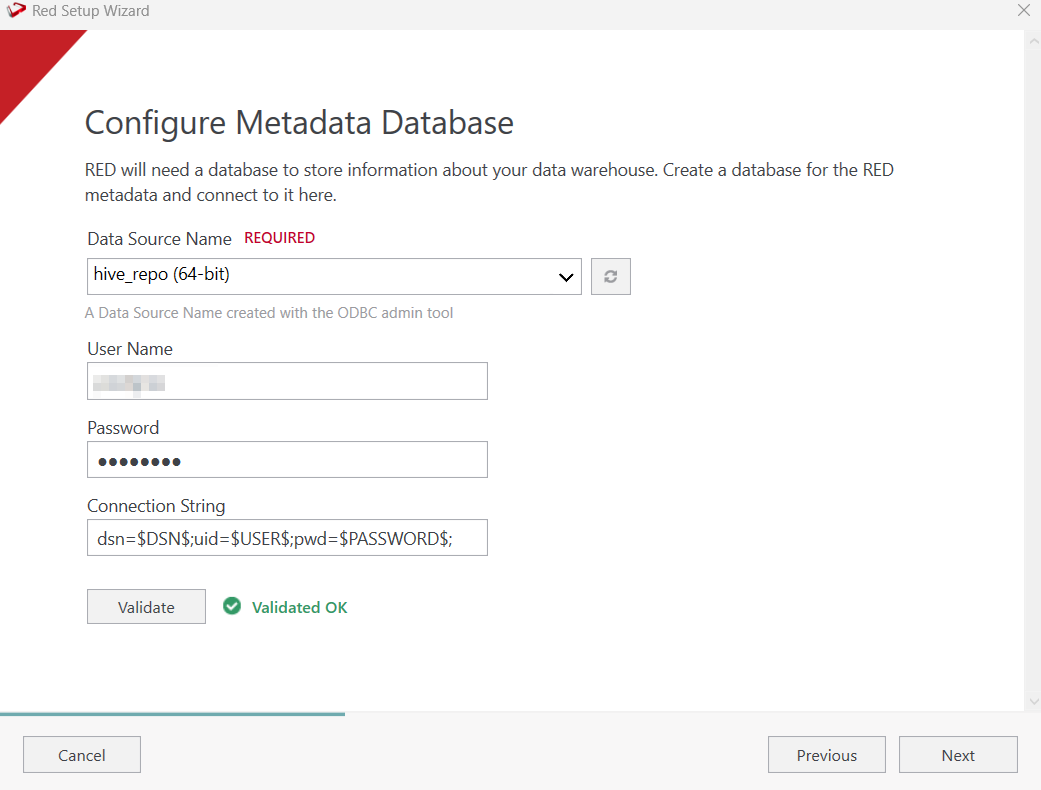
Select the created ODBC DSN, input login details, Connection String and then select "Validate". Press Next.
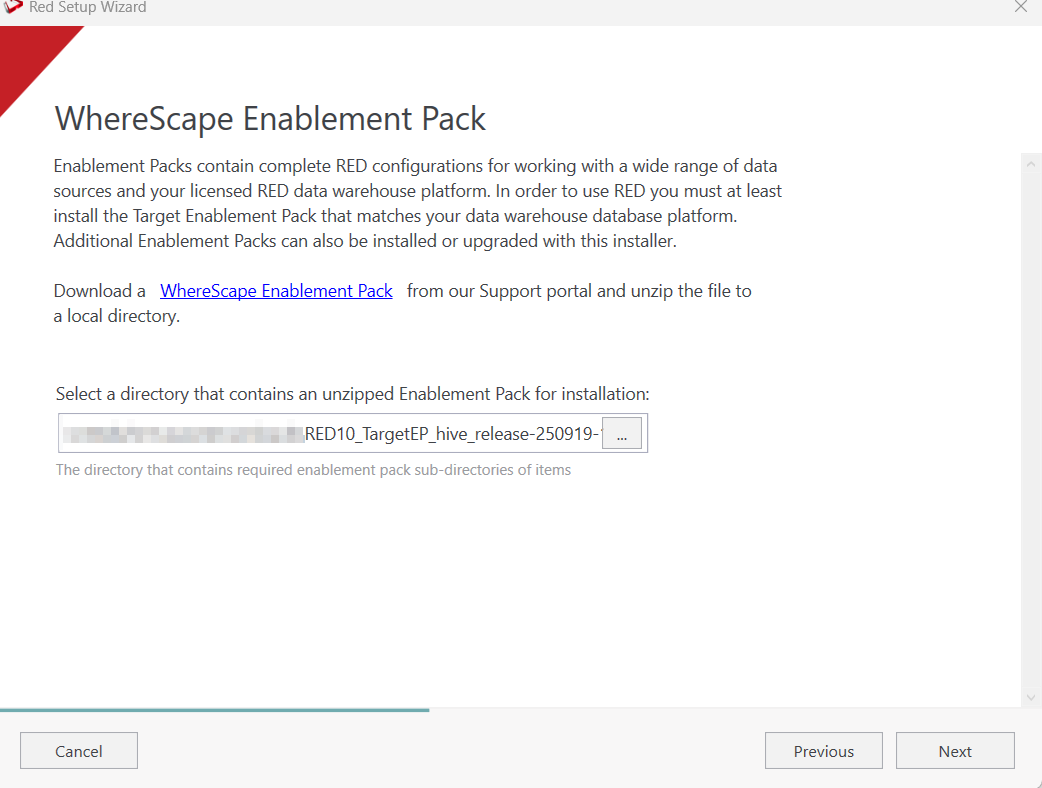
Select the directory that contains the unzipped Enablement Pack for installation. Press Next.
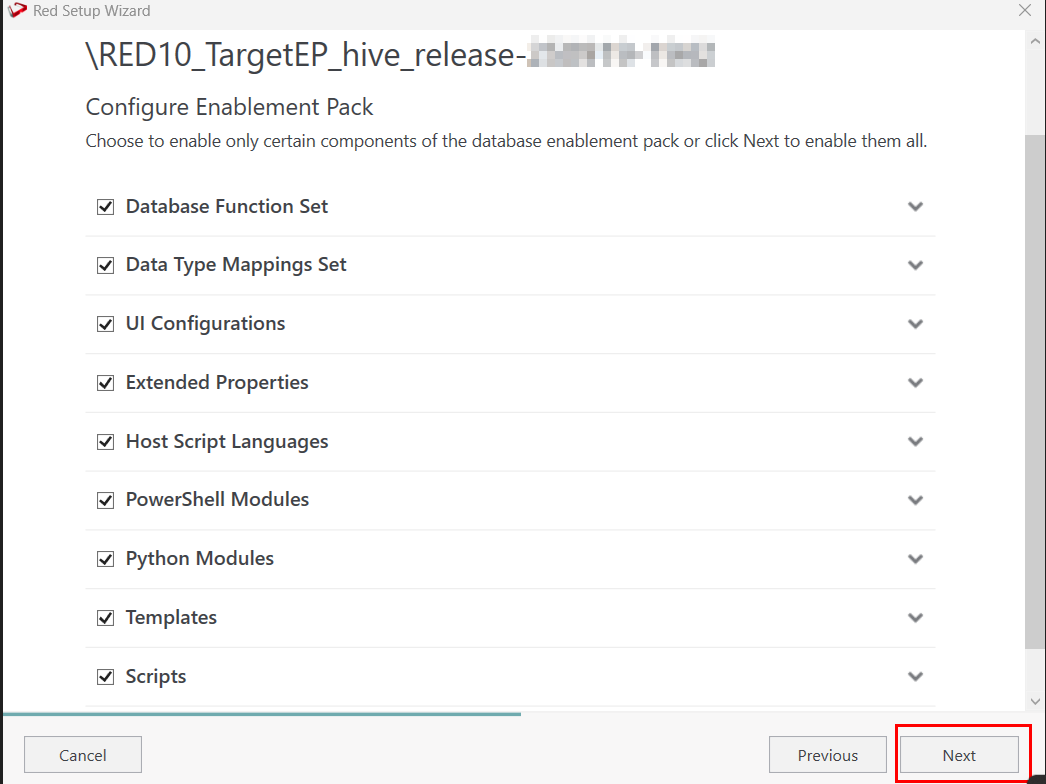
Using the check boxed list, include or exclude the components that are to be installed. Press Next.
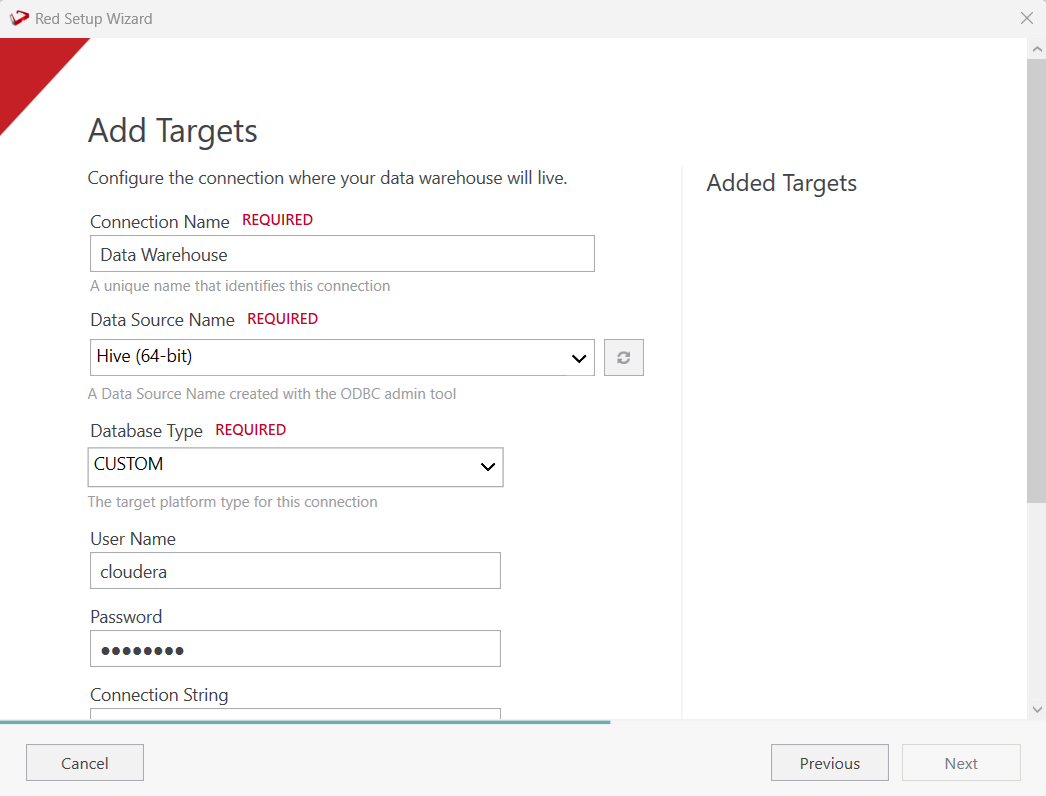
Configure a target connection (example, Data Warehouse) and its target locations. Validate and press Add.
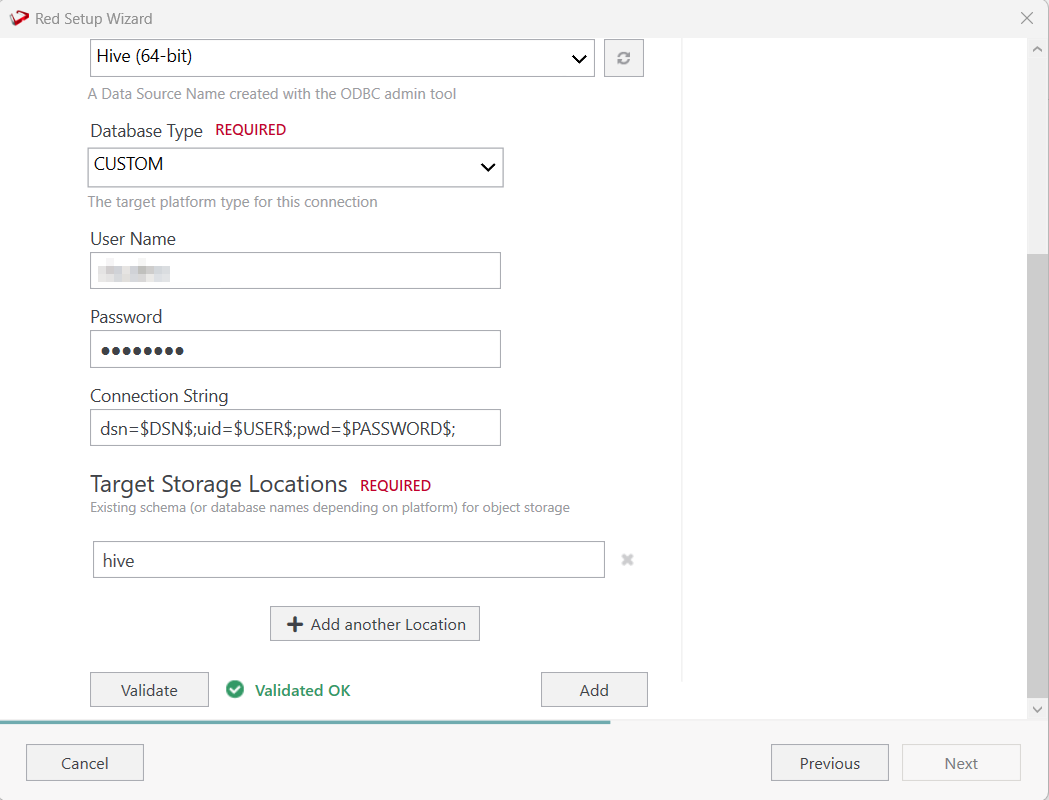
When done, press Add and then press Next to advance.
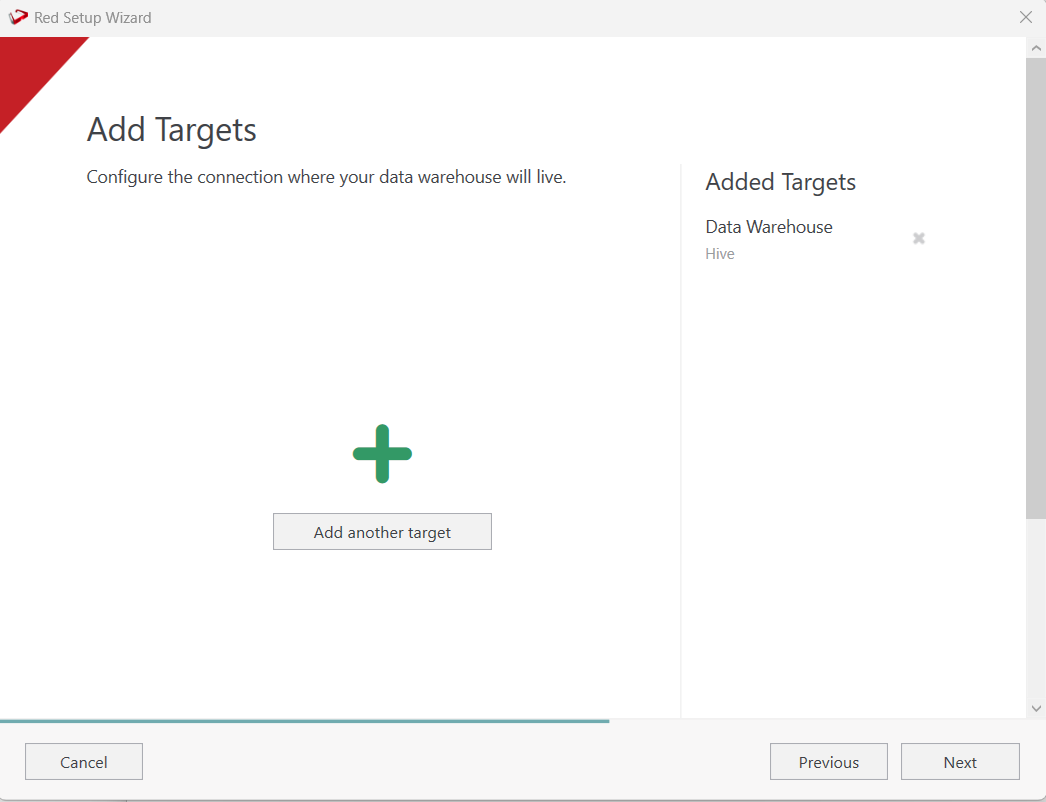
Configure a data source connection (optional) and its target locations. Validate and press ADD. Press Next to advance.