WhereScape Enablement Pack for Snowflake - RED 10
This is a guide to installing the WhereScape Enablement Pack for Snowflake for WhereScape RED10
Prerequisites For PostgreSQL Metadata
Before you begin the following prerequisites must be met:
- Create Database and ODBC DSN:
- Supported* version of PostgreSQL (PostgreSQL 12 or higher)
- A database to house the RED Metadata Repository.
- A database for the Range Table DB (Optional)
- A database to house scheduler (Optional)
- Supported* version of PostgreSQL (PostgreSQL 12 or higher)
- Software Installations
- WhereScape RED10 with valid license key entered and EULA accepted
- WhereScape Enablement Pack for target database version RED10
- Windows Powershell (64-bit) version 4 or higher
- To check the Windows Powershell Version:
- Run the below command in Windows Powershell
Get-Host|Select-Object Version
- Run the below command in Windows Powershell
- To check the Windows Powershell Version:
- Run the below command in the Command Prompt
powershell $psversiontable
- Run the below command in the Command Prompt
- Run the following command using PowerShell
- The security protocol TLS 1.0 and 1.1 used by PowerShell to communicate with the PowerShell gallery has been deprecated and TLS 1.2 has been made mandatory
[Net.ServicePointManager]::SecurityProtocol = [Net.ServicePointManager]::SecurityProtocol -bor [Net.SecurityProtocolType]::Tls12
Register-PSRepository -Default -Verbose
Set-PSRepository -Name "PSGallery" -InstallationPolicy Trusted
- The security protocol TLS 1.0 and 1.1 used by PowerShell to communicate with the PowerShell gallery has been deprecated and TLS 1.2 has been made mandatory
- Progress bar placeholder info line
Install-Module -Name PoshProgressBar -SkipPublisherCheck -Force
- Progress bar placeholder info line
* RED supports the following versions for the metadata repository: PostgreSQL 12 or higher
Prerequisites for Target Database
Before you begin the following prerequisites must be met:
- Access to a Teradata (Target Environment), with the following connectivity information:
- Server Name
- Database Name
- User Name
- Password
- At least one database available to use as a RED Data Warehouse Target with permissions CREATE, EXECUTE, DROP, SELECT
PROCEDURE.
- Create Database and ODBC DSN Teradata ODBC driver (64-bit)
- Add ODBC DSN for Teradata Target Database
- The 'Return Output Parameters As ResultSet' option is to be checked in the driver options setting.
- Software installation
- Install the necessary Teradata Tools and Utilities (TTU) (TBuild CLI Tool) as per Teradata's documentation.
- Python 3.8 or higher
- Select "Add Python 3.8 to PATH" from installation Window
- Pip Manager Install with command: python -m pip install --upgrade pip
Installation Through Setup Wizard
Run Setup Wizard as administrator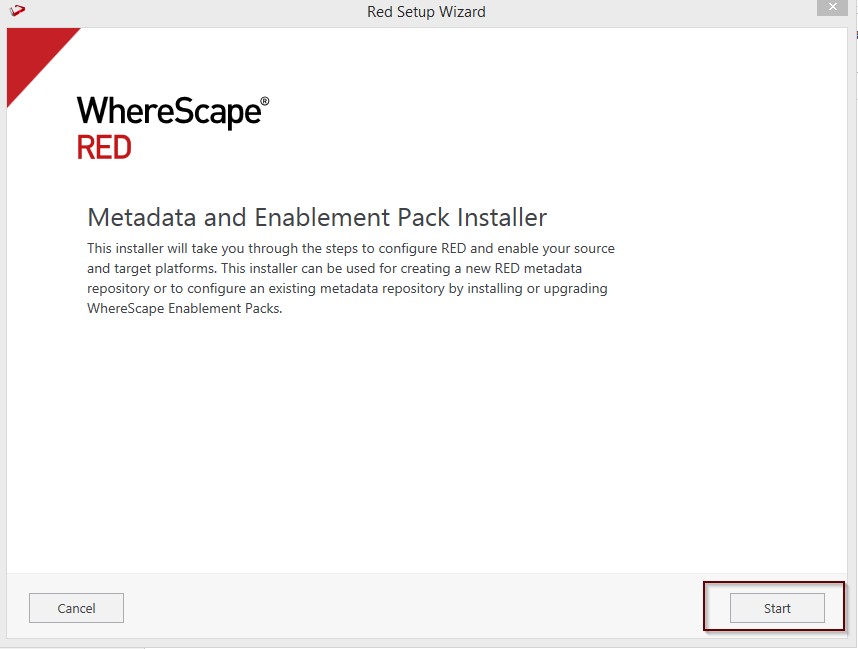
Create a new repository or upgrade an existing repository.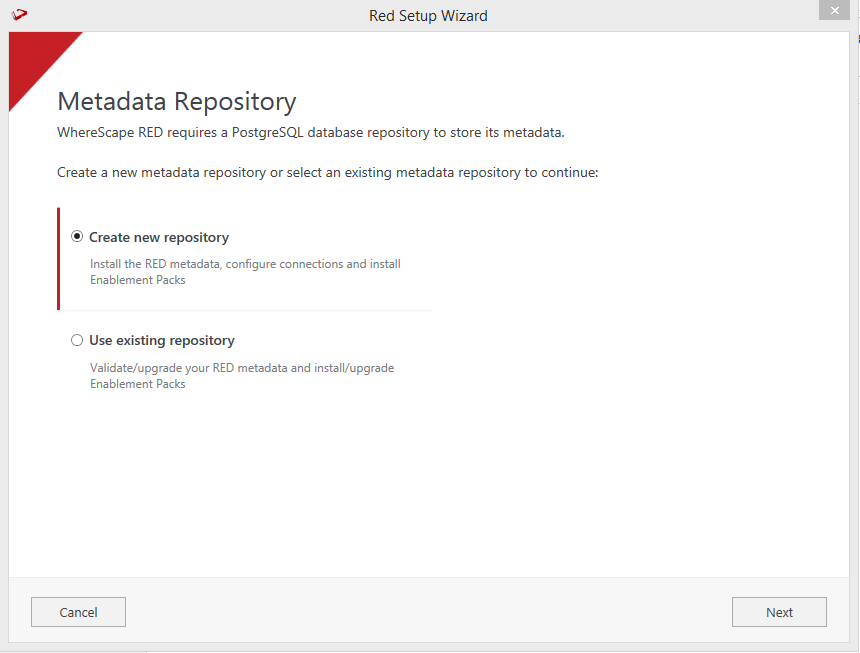
Select the created ODBC DSN, input login details, and then select Validate. Click Next