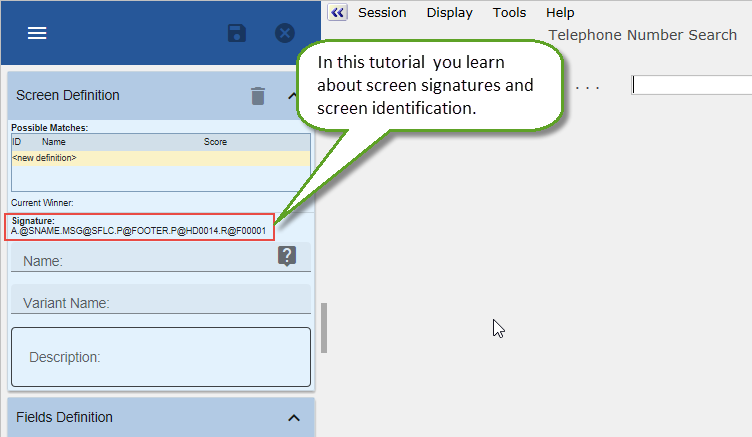
In this tutorial you learn to understand concepts behind screen signatures and screen identification.
Objectives
- Understand what screen signatures are.
- Learn how to create a single screen definition for two screens with different signatures
- Learn how to uniquely identify screens that share the signature with other screens.
- Learn how to use screen name Variants.
To achieve this objective, you will complete the following steps:
- RAMP-WIN014 Step 1. Assigning the Same Name to Two Screen Variations
- RAMP-WIN014 Step 2. Handling Different Screens with the Same Signature
- RAMP-WIN014 Step 3. Creating Screen Variants
- RAMP-WIN014 Step 4. Using Screen Variants in the Script
- RAMP-WIN014 Step 5. Creating a Set of Screens (Advanced)
Before You Begin
In order to complete this tutorial, you must have completed the following:
- RAMP-WIN001: Creating a Basic Prototype of the Modernized Application
- RAMP-WIN002: Rapidly Modernizing Complete Application Segments
- RAMP-WIN003: Creating a Data Filter for Employees
- RAMP-WIN004: Naming and Classifying the Employee Screens
- RAMP-WIN005: Reviewing Design
- RAMP-WIN006: Snapping in a Basic Inquiry Screen
- RAMP-WIN007: Snapping in a Data Entry Function
- RAMP-WIN008: Changing Inquiry Screen to Update Mode
- RAMP-WIN009: Tracing Navigation
- RAMP-WIN010: Using Special Field Handlers
- RAMP-WIN011: Snapping in Shipped Documents Command Handler
- RAMP-WIN012: Snapping in Shipped Notes Command Handler
- RAMP-WIN013: Sending Instance List Data to Excel